


Anthropic
Connect Anthropic as access review source using a Claude Console Admin API key so that the platform can list your organization’s members and roles.
The platform reads the members of your Anthropic organization through AdminAPIso that you can review who has access.
Prerequisites
Section entitled ‘Prerequisites’- the platform organization administrator access
- The admin role in an Anthropic Claude Console organization (AdminAPI is not available for individual accounts)
Collected Fields
Section entitled “Collected Fields”| the platform field | Anthropic field | Notes |
|---|---|---|
| Name | name |
|
email |
||
| Role | role |
One of these is user, claude_code_user, developer, billing, admin |
| Admin | role |
Showed as administrator when role is admin |
| Status | Not supported | |
| MFA | Not supported | |
| Last login | Not supported | |
| External ID | id |
Stable ID used to track your account through reviews |
| Created at | added_at |
When a member joins the organization |
Step 1: Create an Admin API Key
Section entitled “Step 1: Create an AdminAPIKey”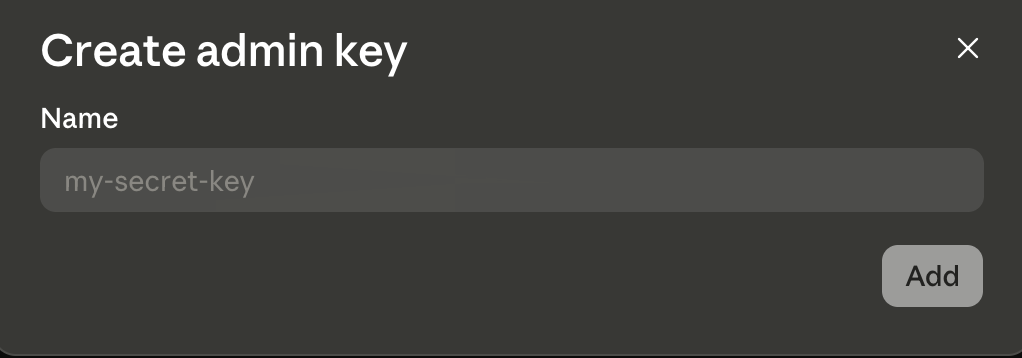
- In the Claude Console, go to Settings > Admin keys Ca organizaţie admin.
- Click + Create admin key, enter a name (for example
Probo Access Review) and click on AddConsole administration keys do not have domains, so each key has full access to AdminAPI. - Copy the key (
sk-ant-admin01-…) and save it securely.
Step 2: Connect in the platform
“Step 2: Connect in the platform”- On the platform, go to Access Reviews > Sources > Add Source.
- Find Anthropic, click API KeyPut the key and click Connect.
The platform names the source after your organization and attracts its members to your campaigns.
Troubleshooting
Section “Troubleshooting”- Key rejected. Confirms that it is a Console administration key (
sk-ant-admin01-…) created by an administrator. a ConsoleAPI standard key(sk-ant-api03-…) will not work. - “Admin API unavailable for individual accounts”. Create an organization in the Console Settings > Organization first.